
Choose a VPN service, set it up on a phone or computer, and verify that your connection uses the VPN. This guide is for beginners who want more privacy on public or home networks and need practical checks for provider claims. Allow 30-60 minutes to compare services, install an app, and review its settings. A VPN can hide your traffic from the local network and change the IP address websites see, but it does not make you anonymous or protect you from every online threat.

Get privacy and security gear delivered free with Prime
- Fast, free delivery on millions of items
- Prime Video, Amazon Music and more included
- Member-only deals all year
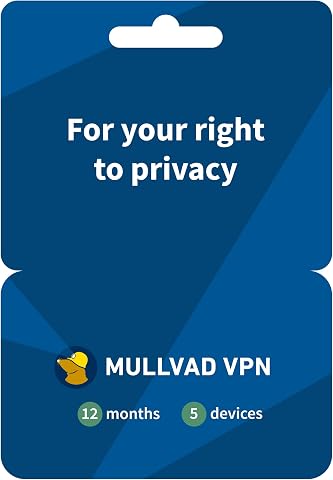
Mullvad VPN 12-Month Subscription for 5 Devices
- ✔ Subscription duration: 12 months
- ✔ Simultaneous devices: Up to 5
- ✔ VPN protocol: WireGuard

NordVPN Standard 1-Year Subscription for 10 Devices
- ✔ Subscription term: 1 year
- ✔ Device limit: Up to 10 devices
- ✔ Supported platforms: Windows, macOS, iOS, Android, Linux, Amazon Fire TV, web browsers

Malwarebytes Premium Security and Privacy VPN, 1-Year Subscription for 2 Devices
- ✔ Subscription: 1 year
- ✔ Device limit: 2 devices
- ✔ Supported platforms: Windows, macOS, Android, iOS, iPadOS, Chromebook
Difficulty: Beginner | Time: 30-60 minutes
What You’ll Need
Tools & Materials:
- A phone, tablet, or computer with internet access
- An account with a VPN provider you have researched
- The provider’s official app or setup instructions
- A payment method, if the service requires a paid plan
Knowledge:
- Ability to install apps and change basic device settings
- Ability to recognize the official website or app-store listing for a provider
Set aside 30-60 minutes. Keep your normal internet connection available while installing and testing. Avoid signing up through advertisements or links in unsolicited messages; type the provider’s address yourself or use its verified app-store listing.
Mullvad VPN 12-Month Subscription for 5 Devices
Mullvad earns the top spot because its setup is unusually direct for a privacy-focused service: buyers activate with a code and **do not need to provide an email address**. The description also says the service is designed to operate without activity logs, and lists regular independent security audits. Together, those details make it the clearest fit in this group for people who want to reduce the personal information tied to a VPN account.Its WireGuard connection and support for **five simultaneous devices** cover common phones and computers, including iOS, Android, Windows, macOS, and selected Linux distributions. Compared with NordVPN, Mullvad gives up half the device capacity and several bundled protections, but it makes account privacy the more visible priority. Compared with Malwarebytes, it is a more focused VPN choice rather than a package centered on device threat protection.The tradeoffs are practical. The subscription runs for a fixed 12 months, and the listed Linux compatibility names Debian, Ubuntu, and Fedora rather than every distribution. Buyers should also understand that a no-email account and no-activity-log design do not make all online activity anonymous. Mullvad is the strongest match here when **account minimization matters more than bundled extras**.
Pros:
- Activation code setup does not require an email address.
- Designed to operate without activity logs, according to the product description.
- Supports five simultaneous connections across major mobile and desktop platforms.
- Uses WireGuard and lists regular independent security audits.
Cons:
- Subscription is limited to a fixed 12-month period.
- Listed Linux support names Debian, Ubuntu, and Fedora rather than a wider range of distributions.
- Does not bundle the malware, phishing, and tracker protections listed for the other services.
Best for: Privacy-conscious individuals or small households who want VPN access without tying setup to an email address.
Not ideal for: People who need more than five simultaneous connections, broad listed Linux coverage, or built-in malware and phishing tools.
Bottom line: Choose Mullvad when minimizing account information is your leading priority and five supported devices are enough.
“Choose Mullvad when minimizing account information is your leading priority and five supported devices are enough.”
NordVPN Standard 1-Year Subscription for 10 Devices
NordVPN is the lineup’s capacity pick: its subscription supports **up to 10 devices**, twice Mullvad’s limit and five times Malwarebytes’ stated allowance. That makes it a practical option for a household or a person with many phones, computers, and streaming devices to cover under one subscription. Its app list extends to Fire TV and web browsers as well as common desktop and mobile platforms.For privacy controls, NordVPN lists a **Kill Switch** and Double VPN servers. The Kill Switch is intended to stop traffic from continuing over an ordinary connection if the VPN drops; Double VPN routes traffic through two VPN servers. It also includes ad and tracker blocking, malware scanning, and phishing protection. Compared with Mullvad, this is a more feature-rich package with more device capacity, but Mullvad’s email-free activation makes the account privacy story simpler and more explicit. Compared with Malwarebytes, NordVPN’s included protections focus more on connection and browsing features than a broader suite of real-time device defenses.The added tools mean more to assess, and they do not guarantee that an account, device, or online identity is protected in every situation. The Dark Web Monitor alerts users if listed email addresses or card details appear in monitored data; it **does not secure affected accounts**. The one-year term is another constraint for anyone who wants a different subscription period. Pick NordVPN when broad coverage and connection controls matter more than the minimal-account setup that distinguishes Mullvad.
Pros:
- Supports up to 10 devices simultaneously.
- Apps cover desktop, mobile, Linux, Fire TV, and web browsers.
- Includes a Kill Switch and Double VPN servers.
- Adds malware scanning, phishing protection, and ad and tracker blocking.
Cons:
- The subscription term is limited to one year.
- Dark Web Monitor alerts do not secure affected accounts.
- The broad feature bundle may be more than buyers seeking a focused VPN need.
Best for: Households or multi-device users who want up to 10 connections plus VPN controls and browsing protections in one subscription.
Not ideal for: Buyers whose main criterion is avoiding email-linked account setup, or who want a VPN without a wider collection of add-on features.
Bottom line: Choose NordVPN when covering many devices and having additional connection and browsing controls outweigh account-setup minimalism.
“Choose NordVPN when covering many devices and having additional connection and browsing controls outweigh account-setup minimalism.”
Malwarebytes Premium Security and Privacy VPN, 1-Year Subscription for 2 Devices
Malwarebytes makes the most sense for buyers who want a **VPN alongside device security**. The one-year subscription combines a no-log VPN and encrypted public Wi-Fi connections with real-time protection against malware, viruses, phishing, and ransomware. Browser Guard adds blocking for ads, trackers, malicious pages, and online scams in supported browsers. This package addresses more than the network connection, which is its key difference from Mullvad’s focused VPN offering.The VPN supports two devices, the smallest allowance in this comparison. NordVPN is a better fit for households that need to cover many devices and want tools such as Double VPN; Malwarebytes instead pairs its VPN with a broader security suite. Its listed VPN uses **256-bit AES encryption** and covers 500+ servers in 40+ countries. Those details describe the offering, but buyers should compare their needs by platform and by which protections apply to their devices.There are meaningful limitations. Some protections, including ransomware and zero-day exploit protection, are listed as Windows-only, while real-time protection and updates require an active internet connection. The subscription also cannot be combined with an existing subscription. With its two-device limit, Malwarebytes ranks third as a privacy-focused VPN choice, but it can be the most convenient fit when bundled threat protection is the goal.
Pros:
- Bundles a no-log VPN with real-time threat protection.
- Browser Guard blocks ads, trackers, malicious pages, and scams in supported browsers.
- Encrypts connections on public Wi-Fi and lists 256-bit AES VPN encryption.
- Supports Windows, macOS, Android, iOS, iPadOS, and Chromebook.
Cons:
- Covers only two devices.
- Some protections, including ransomware and zero-day exploit protection, are Windows-only.
- Real-time protection and updates require an active internet connection.
Best for: Someone who wants a VPN and real-time malware, phishing, and browser protections for a small number of supported devices.
Not ideal for: Households needing broad VPN device coverage, or buyers who want a standalone VPN with account privacy as the primary differentiator.
Bottom line: Choose Malwarebytes when a VPN is one part of the device-protection bundle you want, and two devices are sufficient.
“Choose Malwarebytes when a VPN is one part of the device-protection bundle you want, and two devices are sufficient.”
As an Amazon Associate we earn from qualifying purchases.
Before You Start
Decide what you want the VPN to protect. A VPN can encrypt the path between your device and the VPN server, which can reduce what a public Wi-Fi operator or internet provider can see about your connection. The VPN provider can see some connection information, and websites can still identify you through account logins, cookies, or browser fingerprinting. A VPN does not replace HTTPS, software updates, strong passwords, or multifactor authentication.
Check whether your workplace, school, or other network restricts VPN use. A VPN can also affect streaming, banking, local devices, and connection speed. Review the provider’s refund or trial terms before paying.
Step-by-Step Instructions
Step 1: Define your privacy needs
Write down the main reason you want a VPN, such as reducing exposure on public Wi-Fi, limiting your internet provider’s view of your browsing destinations, or connecting through another country while traveling. Decide which devices need coverage and whether you need simultaneous connections, a specific server location, or support for a router.
Use this list to compare services. Avoid choosing based only on a promise to make you anonymous; no VPN can provide that on its own.
Tip:If you mainly need protection on public Wi-Fi, prioritize a reliable app with automatic connection and a kill switch. If you need access to a particular region, check that the service supports it and that its use fits the rules of the sites you access.
Check: You have a short list of needs to use when evaluating providers.
Step 2: Compare providers and verify their claims
Read the provider’s privacy policy and check what data it collects, how long it keeps connection records, and whether it shares information with affiliates or authorities under legal requests. Look for a recent independent audit of its privacy or security controls, and read the audit scope and date rather than relying on a badge alone.
Check the provider’s ownership, headquarters, supported protocols, security update history, and available payment and support options. Compare the total renewal price, cancellation rules, and refund conditions. Treat absolute claims such as “100% anonymous” or “no risk” as a reason to investigate further.
Tip:A “no logs” claim is a provider statement. An independent audit can provide added evidence, but it covers specific systems and a point in time; it is not a guarantee of future behavior.
Check: You can explain why your chosen provider fits your needs and identify its data practices, pricing terms, and available evidence for its privacy claims.
Step 3: Install the official VPN app
Download the app from the provider’s official website or the official app store for your device. Check the developer name before installing. Open the app, sign in, and grant only the permissions needed for VPN operation. On phones and computers, the operating system will ask you to approve a VPN configuration; review the prompt and approve it only for the app you installed.
If you are configuring a router manually, follow the provider’s current instructions for your exact router model. Do not paste configuration files or credentials from a third-party site.
Tip:Some VPN apps offer optional analytics or crash-reporting settings. Review those separately from the connection permissions and turn them off if you do not want to send usage diagnostics.
Check: The official app opens, your account is active, and the operating system lists or permits the VPN connection.
Step 4: Choose a secure connection and server
Select a modern supported protocol recommended by the provider, such as WireGuard or OpenVPN, in the VPN app. Choose the automatic or nearest server for general browsing, since a nearby server often has lower delay. Pick a different location only when you have a specific reason.
Turn on the kill switch if the app provides one. This setting blocks internet traffic if the VPN connection drops, though its behavior can differ by device and app. Enable automatic connection on untrusted Wi-Fi if you want the VPN to start when joining public networks.
Tip:Some apps offer split tunneling, which routes selected apps outside the VPN. Leave it off unless you understand which traffic it excludes, since excluded apps will use your regular connection.
Check: The app shows the selected protocol and server, and the kill switch or automatic connection settings are enabled if available.
Step 5: Connect and check the visible IP address
Tap or click Connect and wait for the app to report an active connection. Open a browser and search for an IP address check, or use a reputable IP-checking site. Compare the displayed address and approximate location with the values shown when the VPN is disconnected. The connected result should show the VPN server’s address or location rather than your usual public IP address.
Run a reputable DNS leak test while connected for a stronger check. If the results identify your internet provider or home network instead of the VPN provider, review the app’s leak-protection settings and repeat the test.
Tip:Location databases can be inaccurate, and a VPN server may appear in a nearby city. Focus on whether the public IP changes and whether DNS results expose your usual provider.
Check: The VPN app reports a connection, your public IP has changed, and a DNS test does not show your usual provider’s DNS servers.
Step 6: Test behavior when the connection changes
Switch between Wi-Fi and mobile data, or briefly disconnect and reconnect the network, while the VPN is connected. Watch the VPN app for a reconnect notice. If you enabled a kill switch, compare its observed behavior when the tunnel drops with the app’s documentation. Avoid accessing sensitive accounts during this test.
Reconnect to the VPN and repeat the IP check. If you use multiple devices, install the official app on each one and review its settings separately; a subscription does not necessarily mean every device is protected automatically.
Tip:Do not assume a kill switch works the same way on every operating system. Consult the provider’s documentation for device-specific limits, especially when changing networks or using sleep mode.
Check: The app reconnects after a network change, and a fresh IP check shows the VPN address while the connection is active.
Step 7: Review account and device upkeep
Set a unique password for your VPN account and enable multifactor authentication if the provider offers it. Save recovery codes somewhere secure. Turn on automatic app updates, and check periodically for changes to the privacy policy, renewal price, or account settings.
Set a reminder before a trial or introductory price ends. If you stop using the service, cancel renewal through the correct account or app-store billing channel, then remove the app and VPN profile from devices where you no longer need it.
Tip:Deleting the app may not cancel a subscription billed through an app store. Check the billing source and cancellation status directly.
Check: Your account has a unique password, available security options are configured, and you know where to review renewal and cancellation details.
Common Mistakes to Avoid
- Choosing a VPN solely because it advertises a free plan or an anonymous connection. — Review the privacy policy, data collection, funding model, independent audit details, and renewal terms before signing up. Treat anonymity promises as marketing rather than proof.
- Installing a lookalike app or configuration from an unofficial source. — Use the provider’s official site or verified app-store listing, check the developer name, and follow instructions for your exact device or router.
- Assuming the VPN protects every device and every app automatically. — Install and configure the service on each device you use. Review split tunneling, browser extensions, and router settings to see which traffic bypasses the VPN.
- Treating the VPN as complete online anonymity. — Remember that account logins, cookies, websites, malware, and the VPN provider itself can still reveal or link activity. Use HTTPS, secure accounts, and updated software as well.
Troubleshooting
Problem: The app will not connect or keeps disconnecting.
Solution: Check that your internet works with the VPN disconnected. Restart the app, select a nearby server, and try another supported protocol. Update the app and check the provider’s service status or device-specific connection guidance.
Problem: The IP check shows your usual address while the VPN says it is connected.
Solution: Disconnect and reconnect, then rerun the check in a private browser window. Confirm the app has system VPN permission and that the tested browser or app is not excluded by split tunneling. Contact provider support if the address still appears.
Problem: A site or local device stops working with the VPN on.
Solution: Try a nearby server or another supported protocol. Check whether the site blocks VPN traffic or whether the service relies on local network access. Add a specific split-tunnel exception only if you understand that the excluded traffic will use your regular connection.
Problem: The connection is much slower than usual.
Solution: Choose a closer server, pause large downloads, and compare performance with another protocol supported by the provider. Some speed reduction is normal because traffic takes an extra route; persistent severe slowdowns may point to a busy server or local network issue.
What Success Looks Like
The chosen service has privacy practices and pricing you have reviewed. Its official app is installed on the devices you intend to protect, and the VPN connects with suitable settings enabled. While connected, an IP check shows the VPN server’s public address and a DNS check does not expose your usual provider. You also know how the app behaves after a network change and where to manage your account and renewal.
Next Steps
Use the VPN when you want your traffic routed through its encrypted tunnel, especially on networks you do not control. Recheck the IP and DNS behavior after major app or operating-system updates, and review the provider’s policy and billing details when your plan renews. If the provider changes its data practices or no longer meets your needs, compare alternatives and cancel through the billing channel before the renewal date.
Frequently Asked Questions
Does a VPN make me anonymous online?
No. A VPN changes the route and public IP address websites see, but websites can still recognize signed-in accounts, cookies, and browser characteristics. The VPN provider may also have access to connection metadata. Use account security and privacy settings alongside a VPN.
Should I leave the VPN on all the time?
You can leave it on if the service works reliably with your apps and networks. Some sites may block VPN addresses, and local devices such as printers may need direct network access. Use the app’s trusted-network or split-tunnel options only after checking what traffic they exclude.
Is a free VPN safe to use?
Some free services have limits, while others may collect or share data. Review the provider’s privacy policy, ownership, independent audits, and funding model. Do not assume that “free” means private or that a paid service is automatically trustworthy.
Why does a VPN reduce my internet speed?
Your traffic travels through an extra server, and speed can vary with distance, server load, protocol, and your base connection. Try a closer server and another provider-supported protocol. Compare at different times before concluding that the service is unsuitable.
Do I need a VPN on my home Wi-Fi?
It depends on what you want to limit. A VPN can reduce what your internet provider sees about destinations and can change the public IP websites see. It does not prevent tracking through accounts or protect a compromised device, and it shifts some trust to the VPN provider.
Fall Picks

DJI Osmo Action 4 Essential Combo Waterproof 4K Action Camera
As an affiliate, we earn on qualifying purchases.