

This guide will walk you through the process of setting up your own personal VPN service. A VPN encrypts your internet traffic and masks your IP address, enhancing privacy and security. This task is suitable for users with basic technical knowledge, such as installing software and navigating system settings. Completing this setup will give you a private and secure internet connection, protecting your data from eavesdropping and untrusted networks.

Get privacy and security gear delivered free with Prime
- Fast, free delivery on millions of items
- Prime Video, Amazon Music and more included
- Member-only deals all year
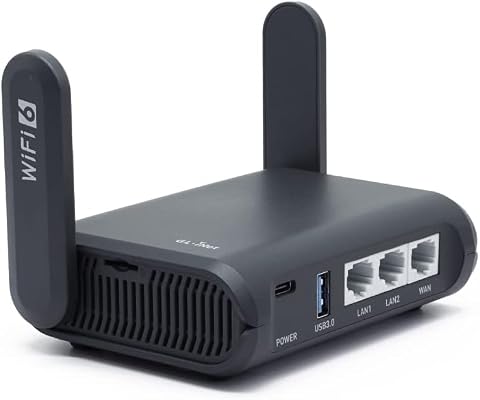
GL.iNet GL-AXT1800 Slate AX Pocket-Sized Wi-Fi 6 Travel Router with VPN
- ✔ Wi-Fi Standard: Wi-Fi 6
- ✔ Dual-Band Speed: 1800 Mbps (600 Mbps 2.4GHz, 1200 Mbps 5GHz)
- ✔ Device Connection Capacity: Up to 120 devices

GL.iNet GL-MT5000 Brume 3 Wired VPN Security Gateway
- ✔ VPN Speed: up to 1100 Mbps
- ✔ Ports: Three 2.5G ports
- ✔ Multi-WAN: Supported

GL.iNet GL-A1300 Pocket VPN Travel Router
- ✔ Wireless Speed: 400Mbps (2.4G) + 867Mbps (5G)
- ✔ CPU: IPQ4018 @717MHz
- ✔ Dimensions: 118 x 84 x 33 mm
Difficulty: Intermediate | Time: 30-60 minutes
What You’ll Need
Tools & Materials:
- A computer or compatible device
- Internet connection
- VPN server software (like OpenVPN, WireGuard, or commercial VPN provider credentials)
- Basic understanding of network settings
Knowledge:
- Familiarity with installing software
- Basic networking concepts (IP addresses, ports, protocols)
Ensure your device’s operating system is up to date before starting. Choose a VPN protocol (OpenVPN or WireGuard) based on your comfort level and security needs. If using a commercial VPN provider, verify their compatibility with your device and the setup instructions they provide.
GL.iNet GL-AXT1800 Slate AX Pocket-Sized Wi-Fi 6 Travel Router with VPN
<p>This compact Wi-Fi 6 router stands out for combining <strong>high-speed dual-band Wi-Fi</strong> with VPN support, perfect for travelers or remote workers. Its support for <strong>OpenVPN and WireGuard</strong> ensures versatile security options, while the <strong>OpenWrt OS</strong> allows extensive customization. Compared with wired options, it offers greater mobility but requires user effort to configure VPN and toggle functions. Its ability to connect up to 120 devices makes it suitable for small groups or multiple devices on the go, though the setup process can be daunting for beginners.</p>
Pros:
- Compact, portable design ideal for travel
- Supports Wi-Fi 6 for fast wireless connections
- Pre-installed VPN options for secure browsing
- Customizable with OpenWrt OS
Cons:
- Requires initial setup for VPN and toggle functions
- Public Wi-Fi hotspots may disconnect after a period
- Some features depend on user configuration
Best for: Travelers and remote workers needing flexible, portable VPN access
Not ideal for: Users seeking a dedicated wired security gateway or plug-and-play setup
Bottom line: A versatile, high-speed travel router that balances performance with customization, best suited for experienced users comfortable with setup.
“A versatile, high-speed travel router that balances performance with customization, best suited for experienced users comfortable with setup.”
GL.iNet GL-MT5000 Brume 3 Wired VPN Security Gateway
<p>The <strong>Brume 3</strong> is a powerful wired security hub designed for dedicated setups. It offers <strong>up to 1100 Mbps</strong> VPN throughput with hardware acceleration for <strong>WireGuard and OpenVPN-DCO</strong>, making it ideal for secure remote access in a fixed location. Its three <strong>2.5G ports</strong> and multi-WAN support enable high-speed, multi-gigabit, multi-source Internet connections. However, it lacks built-in Wi-Fi, so it’s not suitable for portable use. Its advanced security features like <strong>VPN obfuscation and DPI protection</strong> make it a top choice for network security professionals or small offices.</p>
Pros:
- High VPN throughput for fast remote and local access
- Supports multi-gigabit wired connections
- Advanced security features including VPN obfuscation and DPI
- Expandable with USB storage and plugins via OpenWrt
Cons:
- No built-in Wi-Fi connectivity
- Complex setup requiring technical knowledge
- Limited to wired connections
Best for: Fixed-location users needing high-performance, wired VPN security
Not ideal for: Travelers or those requiring wireless connectivity on the move
Bottom line: A high-performance wired VPN gateway suited for security-conscious environments, but not for portable or wireless needs.
“A high-performance wired VPN gateway suited for security-conscious environments, but not for portable or wireless needs.”
GL.iNet GL-A1300 Pocket VPN Travel Router
<p>The <strong>GL-A1300</strong> combines <strong>dual-band Wi-Fi</strong> speeds with <strong>VPN support</strong> in a lightweight, travel-friendly package. Its open-source firmware offers customization, while built-in support for <strong>OpenVPN and WireGuard</strong> ensures secure browsing on the go. The device also supports network storage via Ethernet and USB, adding versatility for mobile users. Its main tradeoff is that VPN speeds can vary depending on your provider, and the default toggle switch requires configuration in admin settings, which might be a hurdle for less tech-savvy users.</p>
Pros:
- Supports high-speed dual-band Wi-Fi
- Open-source firmware for customization
- Built-in VPN client and server support
- Lightweight and portable
Cons:
- Default toggle switch requires configuration
- VPN speeds depend on service quality
- Limited detailed user interface info
Best for: Travelers needing portable, reliable VPN on the move
Not ideal for: Users seeking a dedicated home or office security device
Bottom line: A portable, versatile VPN router ideal for travel, offering good speed and customization with some setup required.
“A portable, versatile VPN router ideal for travel, offering good speed and customization with some setup required.”
As an Amazon Associate we earn from qualifying purchases.
Before You Start
Back up important data before modifying network settings. Confirm you have administrator access on your device. Decide whether you want to set up a personal VPN server (more control, more complexity) or use a commercial VPN service (easier, less maintenance). Prepare your network environment by ensuring your router allows VPN traffic if you plan to connect remotely. Read the VPN provider’s documentation if using a commercial service to understand their specific configuration steps.
Step-by-Step Instructions
Step 1: Choose Your VPN Setup Method
Decide whether to set up your own VPN server or subscribe to a commercial VPN service. If setting up your own, select VPN server software such as OpenVPN or WireGuard. If using a commercial provider, obtain the login credentials and configuration files they supply.
Tip: For beginners, using a commercial VPN service offers a straightforward setup with less technical configuration.
Check: You have identified your VPN method and gathered all necessary software or credentials.
Step 2: Install VPN Client Software
Download and install the VPN client software compatible with your chosen VPN protocol. For OpenVPN, download their official client from openvpn.net. For WireGuard, install the WireGuard app from your device’s app store or official site.
Tip: Use official sources to avoid security risks. Ensure the software version is current.
Check: The VPN client software is installed and opens without errors.
Step 3: Configure VPN Settings
Import the configuration files provided by your VPN provider or set up the connection manually. Open the VPN client, select ‘Import’ or ‘Add a new connection,’ and load the configuration file. Enter your username and password if prompted.
Tip: Double-check server addresses, ports, and protocols in the configuration file for accuracy.
Check: The VPN profile appears in your client, and you can select it for connection.
Step 4: Adjust Network and Firewall Settings
If necessary, modify your device’s firewall or router settings to allow VPN traffic. Open the appropriate ports (e.g., 1194 for OpenVPN, 51820 for WireGuard) and ensure your network permits outbound VPN connections.
Tip: Consult your network hardware documentation for port forwarding setup if connecting remotely.
Check: Your device and network allow VPN traffic without blocking the connection.
Step 5: Connect to the VPN
Open your VPN client, select the configured VPN profile, and click ‘Connect.’ Wait until the connection is established, indicated by a status message or a change in the client interface.
Tip: If connection fails, verify the server address, credentials, and network settings. Restart the client if needed.
Check: You see a confirmation that the VPN is connected, and your IP address has changed to the VPN server’s IP.
Step 6: Verify Your VPN Connection
Visit a website like whatismyip.com to confirm your public IP address reflects the VPN server location. Test your connection by accessing secure sites or services to ensure traffic is encrypted.
Tip: Disconnect and reconnect if the IP address does not update or if connection issues persist.
Check: Your IP address shows the VPN server’s location, and secure websites load properly with a secure connection.
Common Mistakes to Avoid
- Using incorrect or outdated configuration files — Always download the latest configuration files directly from your VPN provider or generate fresh keys if setting up your own server.
- Failing to open necessary ports on router or firewall — Check your network’s port forwarding and firewall rules to ensure VPN traffic is allowed through the correct ports.
- Not verifying the VPN connection after setup — Always check your IP address and test connectivity after connecting to confirm the VPN is active.
Troubleshooting
Problem: VPN connection fails to establish
Solution: Verify server address, credentials, and network permissions. Restart your device and try reconnecting. Consult logs for error details.
Problem: VPN disconnects frequently
Solution: Check your internet stability, ensure your VPN software is up to date, and verify port forwarding settings.
Problem: Your IP address does not change after connecting
Solution: Ensure the VPN connection is active and using the correct profile. Restart the VPN client and test again.
What Success Looks Like
You are connected to your VPN with a status indicator showing active connection. Your public IP address reflects the VPN server location, and secure websites load without errors. Traffic is encrypted, verified by connection tests or VPN logs showing successful data transfer.
Next Steps
Regularly update your VPN client and configuration files. Test your VPN connection periodically to confirm ongoing security. Consider setting your VPN to start automatically on device startup for continuous protection. If using a self-hosted server, schedule maintenance and monitor logs for issues.
Frequently Asked Questions
Can I use a personal VPN on multiple devices?
Yes. Many VPN protocols and services support multiple devices. Install the VPN client on each device and use your credentials or configuration files to connect separately.
Is setting up my own VPN secure?
Setting up your own VPN can be secure if configured correctly, with strong encryption and updated software. It offers greater control but requires ongoing maintenance and security awareness.
Will a VPN slow down my internet connection?
Potentially, because your traffic is encrypted and routed through a server. The impact depends on your server’s location, bandwidth, and VPN protocol used.
Can I run a VPN server on my home network?
Yes. You can set up a VPN server on a dedicated device or router. Ensure your network hardware supports it and correctly configure port forwarding for remote access.