

To sniff network traffic with Wireshark, start by downloading and installing the application. Launch Wireshark and select your main network interface to begin capturing packets in real-time. Use the filter bar to focus on specific traffic like HTTP or TCP by entering keywords. Analyze the captured data with built-in tools for insights into performance and security. Ensuring ethical practices is vital. Stick around to discover more about advanced features and effective strategies for network analysis.
Key Takeaways
- Download and install Wireshark on your operating system to get started with network traffic monitoring.
- Launch Wireshark, select your primary network interface, and begin capturing packets in real-time.
- Apply filters in the filter bar to focus on specific traffic types, such as HTTP or encrypted connections.
- Utilize the “Statistics” menu to analyze captured data and visualize network performance and behavior.
- Always obtain permission before sniffing network traffic to adhere to ethical and legal standards.
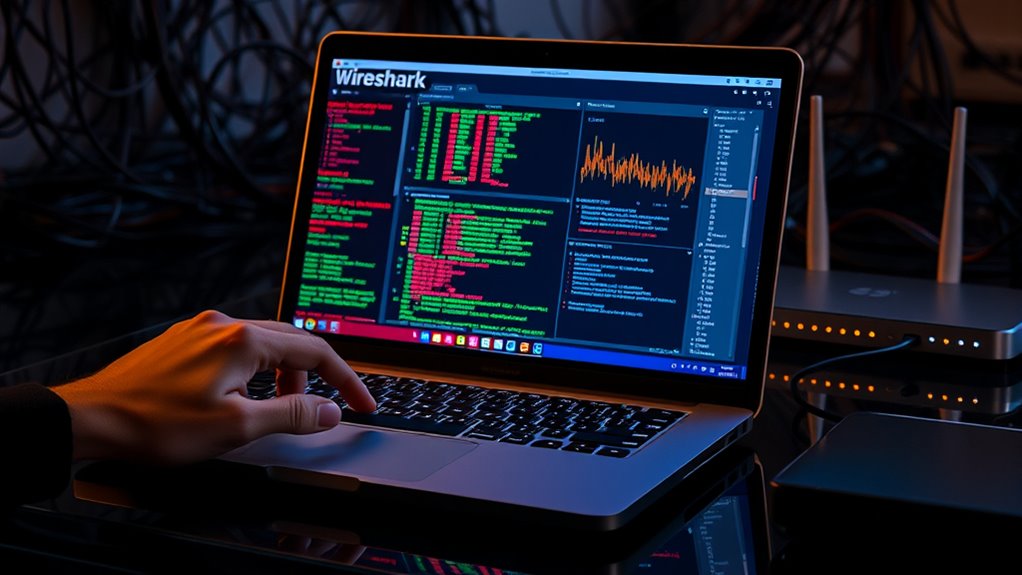
Whether you’re troubleshooting network issues or analyzing security threats, sniffing network traffic with Wireshark can provide invaluable insights. This powerful tool captures and displays the data packets flowing through your network, allowing you to examine the details and gain a deeper understanding of your network’s behavior. By using Wireshark, you can enhance your network security and perform data analysis that helps you identify vulnerabilities and resolve connectivity problems.
To get started, download and install Wireshark on your machine. It’s available for various operating systems, so choose the one that suits your setup. Once it’s installed, launch the application. You’ll see a list of available network interfaces. Select the one you want to monitor—typically your primary network connection. Click on the interface, and Wireshark will begin capturing packets in real-time. You’ll notice a wealth of data appearing in the main window, including source and destination addresses, protocols, and packet lengths.
As you begin your data analysis, you might want to filter the captured packets to focus on specific types of traffic. Wireshark offers a robust filtering system that lets you refine your view. For instance, if you’re interested in HTTP traffic, simply type “http” in the filter bar and hit Enter. This narrows down the data to only HTTP requests and responses, making it easier to pinpoint issues or investigate suspicious activity. You can even set up more complex filters to analyze encrypted traffic, TCP connections, or other protocols relevant to your security needs.
Don’t forget to utilize the various analysis tools Wireshark provides. The “Statistics” menu offers options to view packet summaries, protocol hierarchies, and flow graphs, which can help you visualize network performance and spot anomalies. You can also export captured data for further analysis or sharing with your team. These features empower you to conduct a detailed assessment of your network’s health and security posture. Moreover, understanding the impact of cybersecurity vulnerabilities can be crucial in fortifying your defenses during analysis.
While you’re sniffing network traffic, always keep ethical considerations in mind. Make certain you have permission to monitor the network, especially in professional environments. Unauthorized sniffing can lead to significant legal ramifications and compromise trust. Remember, effective network security relies on ethical practices and responsible data analysis.
Frequently Asked Questions
Is Wireshark Free to Use for Personal and Commercial Purposes?
Yes, Wireshark is free to use for both personal and commercial purposes. As an open-source tool, it allows you to perform network analysis without any cost. You can delve into packet capturing, troubleshooting, and monitoring your network traffic without worrying about licensing fees. Since it’s widely supported by a community of developers, you’ll find regular updates and enhancements, making it a reliable choice for anyone needing in-depth network insights.
Can I Use Wireshark on Mobile Devices?
You can’t directly use Wireshark on mobile devices, as it’s primarily designed for desktop platforms. However, there are workarounds, like capturing traffic on a mobile device through a computer with Wireshark. This setup can involve app installation challenges, like configuring your mobile device to route traffic through your computer. While it’s not straightforward, with some effort, you can analyze mobile traffic effectively using Wireshark.
What Operating Systems Support Wireshark Installation?
Wireshark supports various operating systems, including Windows, macOS, and Linux distributions. If you’re planning to install it, you’ll find that each OS has specific installation procedures. For Windows, you can download the installer directly from the Wireshark website. On macOS, you can use Homebrew or download the DMG file. For Linux, package managers like APT or YUM simplify the installation process. Make sure to check compatibility with your system version before proceeding.
How Can I Save and Share Captured Traffic Data?
To save and share captured traffic data, you can export the file in various formats like PCAP or CSV. Just go to the “File” menu, select “Export Specified Packets,” and choose your desired format. For sharing methods, you can upload the exported file to cloud storage, email it, or use file-sharing services. This way, you easily distribute your data to colleagues or friends for analysis or collaboration.
Does Wireshark Have Any Built-In Security Features?
Wireshark doesn’t have built-in security features like network encryption or user authentication. It’s primarily a network analysis tool, so it focuses on capturing and analyzing traffic rather than securing it. To guarantee your data is protected while using Wireshark, you should implement security measures outside of the program, like using VPNs or secure protocols. Always remember, while Wireshark is powerful for monitoring, it’s up to you to maintain security.
Conclusion
Now that you’ve learned how to sniff network traffic with Wireshark, remember that knowledge is power. It’s like having a magnifying glass for your digital world—revealing hidden insights and potential security risks. While some might say snooping around is unethical, think of it as being a responsible digital citizen. By understanding your network, you can protect yourself and others. So plunge in, explore, and make your network a safer place for everyone!