
When setting up a new home network, change default passwords on your router and devices immediately, using strong, unique passphrases. Enable WPA3 or WPA2 encryption and consider hiding your network to prevent it from being easily discovered. Set up a separate guest network for visitors, and regularly update your device firmware and router software. Monitor connected devices for suspicious activity and disable unnecessary features. For a safer setup and more helpful tips, keep exploring the essential steps to protect your home network effectively.
Key Takeaways
- Change default passwords on all devices and the router immediately.
- Enable strong Wi-Fi encryption and hide your network name (SSID).
- Regularly update firmware and device software to patch vulnerabilities.
- Use a separate guest network for visitors to isolate main devices.
- Monitor connected devices and disable unnecessary features to reduce security risks.
Setting up a new home network is exciting, but it’s vital to prioritize security from the start. Your network is the backbone of your digital life, and protecting it ensures your personal information stays safe and your devices function without interruption. The first step is to understand smart device security. As you add smart gadgets—like smart thermostats, security cameras, or voice assistants—you’re increasing the number of entry points hackers could exploit. To prevent this, change default passwords on all devices immediately. Use strong, unique passwords for each device, and avoid common choices like “password” or “123456.” Keeping your smart device security tight also means regularly updating device firmware. Manufacturers often release patches that fix vulnerabilities, so checking for updates should become a routine part of your setup. Additionally, disable features you don’t need, such as remote access, which can be an easy target for cybercriminals.
Secure your home network by changing device passwords, updating firmware regularly, and disabling unnecessary remote access features.
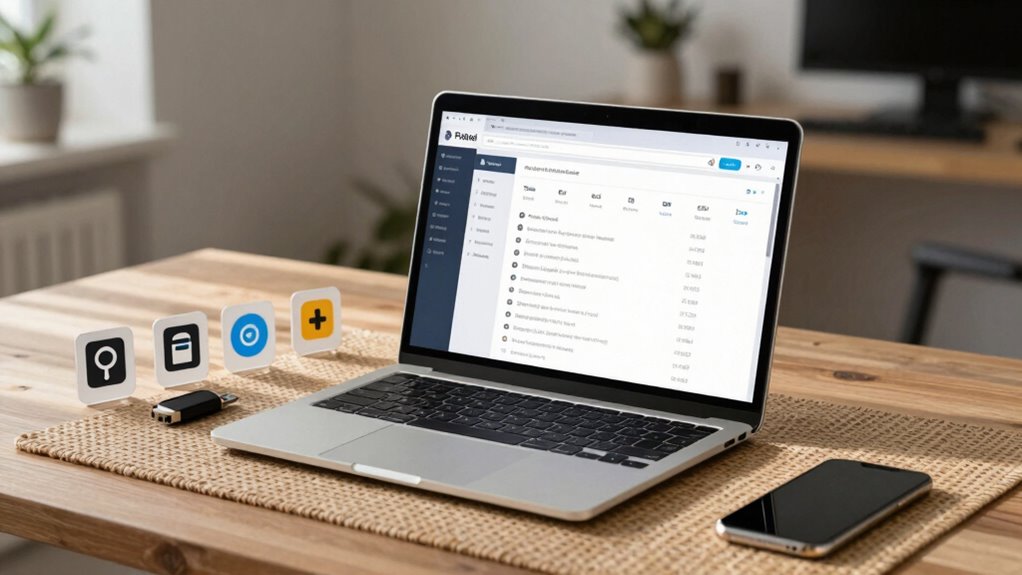
Parallel to securing individual devices, effective password management is vital. Your Wi-Fi network is the gateway to everything else, so it needs a robust password. Use a complex, unpredictable passphrase—ideally a mix of uppercase and lowercase letters, numbers, and symbols—that’s difficult for others to guess. Avoid using personal information or common words. To simplify managing multiple passwords, consider using a reputable password manager. This tool securely stores all your passwords and helps you generate strong ones for each account or device. Never reuse passwords across different devices or services; doing so considerably increases your risk if one account is compromised. Password security is a fundamental aspect of protecting your entire network. Implementing network segmentation can further isolate your main devices from potential threats, enhancing overall security.
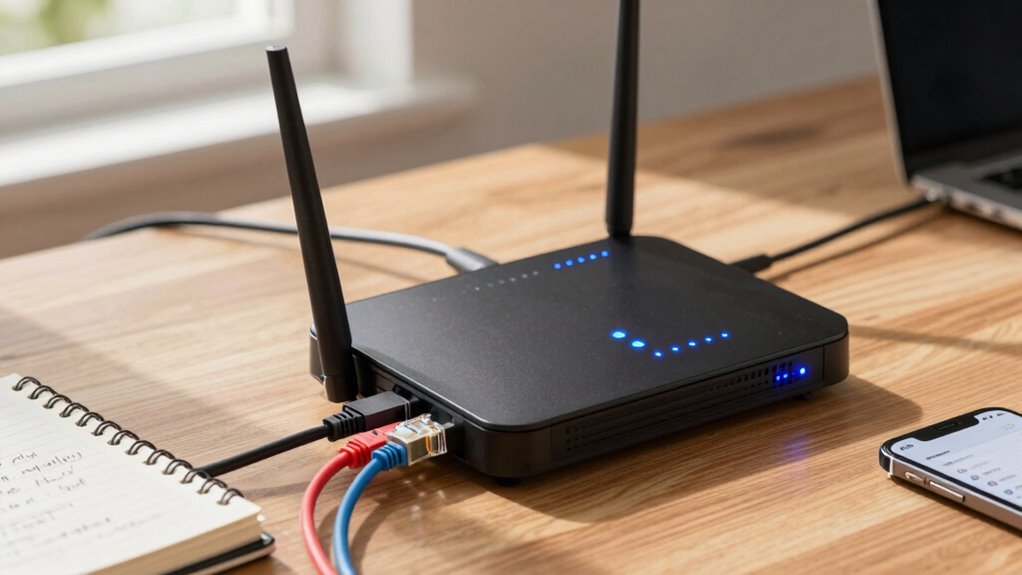
Next, configure your Wi-Fi router with security in mind. Change the default admin username and password, and ensure your Wi-Fi is encrypted using WPA3 or WPA2 protocols. Enable network hiding features if available, so your network isn’t openly discoverable. Setting up a separate guest network can also prevent visitors from accessing your main devices and files, adding an extra layer of security. Regularly monitor your network for unfamiliar connected devices—many routers offer this feature—so you can quickly identify and disconnect any suspicious activity. Additionally, understanding smart device security can help you recognize potential vulnerabilities before they become issues.
Finally, stay informed about the latest cybersecurity threats and best practices. Setting up automatic updates for your router and devices ensures you stay protected against newly discovered vulnerabilities. By treating your home network with care—prioritizing smart device security and practicing diligent password management—you create a safer environment for your digital life. This proactive approach not only safeguards your data but also gives you peace of mind as you enjoy the benefits of your connected home.
Frequently Asked Questions
How Often Should I Update My Router’s Firmware?
You should update your router’s firmware at least once every few months to guarantee peak security. Firmware updates fix vulnerabilities and improve router security, helping protect your network from potential threats. Check your router’s manufacturer website regularly or enable automatic updates if available. Staying current with firmware updates is a simple yet effective way to maintain a secure home network and prevent unauthorized access.
What Is the Best Way to Secure My Wi-Fi Password?
Think of your Wi-Fi password as the fortress guarding your digital kingdom. To secure it, choose a complex password with a mix of letters, numbers, and symbols. Always enable WPA3 or WPA2 encryption standards for maximum protection. Avoid common words or personal info, and change your password regularly. This way, your network remains a stronghold against intruders, ensuring your data stays safe and private.
Should I Disable Remote Management on My Router?
Yes, you should disable remote management on your router. Keeping remote access enabled can expose your network to unauthorized access, especially if it’s using default settings or weak passwords. Disabling remote management ensures only devices on your local network can access router settings, reducing security risks. It’s a simple step that greatly enhances your home network’s security, protecting your personal data from potential intruders.
How Can I Detect if My Network Is Compromised?
To detect if your network is compromised, look for signs of network intrusion like unusual device activity or slow internet speeds. Use malware detection tools to scan your devices regularly. Check your router’s logs for suspicious connections or unfamiliar IP addresses. Keep an eye on your network traffic for anomalies. Staying vigilant and running frequent security scans helps identify potential threats early, preventing further damage.
Is It Necessary to Set up a Guest Network?
Yes, setting up a guest network is necessary for better security. It allows you to control guest access separately from your main network, protecting your personal devices and data. By implementing network segmentation, you isolate guest users, preventing them from accessing your private files or devices. This setup reduces the risk of security breaches and keeps your home network safer while offering visitors internet access without compromising your security.
Conclusion
By following this checklist, you’re building a fortress around your new home network, turning it into a secure sanctuary. Think of each step as a brick in your digital wall, protecting your personal information from lurking threats. Stay vigilant and update your security settings regularly—because in the world of cybersecurity, a proactive stance is your best shield. With these simple measures, you’re well on your way to a safer, more confident online life.